Showing posts with label Windows. Show all posts
Destroy Windows 10 Spying [DWS Lite] 1.6 Final

Destroy Windows 10 Spying [DWS Lite] 1.6 Final

Destroy Windows 10 Spying
Destroy Windows 10 Spying (also called DWS Lite) is a powerful portable software that can block and stop Windows 10 from spying on you. DWS Lite is a simple and tiny software that can block anonymous data being sent by windows 10. It can securely remove Windows 10 metro apps that can not be removed using standard uninstaller (Program and Features) such as Mail, Maps, Calendar, Film TV, 3D Builder, Camera, Photos, and so on. In additions,
Destroy Windows 10 Spying 
also allows you to disable windows defender, disable spy apps and tasks, disable private settings, delete windows keylogger and telemetry and much more. Destroy Windows 10 Spying is the safest way to stop windows 10 from spying on you, the steps are very intelligent and not destroy your system.
Key features:
  • Very fast and easy to use
  • Removes Windows 10 metro apps
  • Disable private setrings
  • Disable windows defender
  • Remove keylogger and telemetry
  • Disable spy apps and tasks
  • Support all editions of Windows 10
How to install?:
  • Disable your anti virus (for temporary)
  • Run (as admin) the software (DWS Lite)
  • Click on “Destroy Windows 10 Spying”#
  • #Other options found on “Settings” tab
  • Enjoy Windows 10 without Spying
Screenshots:
DWS Lite
Minimum Requirements:
  • Windows 10 (32-bit or 64-bit)
  • No special requirements
Download links:

How to Install NET Framework 3.5 in Windows 10

Windows 10 comes with .NET framework 4.5 pre-installed, but many apps developed in Vista and Windows 7 era require the .NET framework v3.5 installed along with 4.5. These apps will not run unless you will install the required version. When you try to run any such app, Windows 10 will prompt you to download and install .NET framework 3.5 from the Internet. However, this will take a lot of time. You can save your time and install .NET Framework 3.5 from the Windows 10 installation media. This method is much faster and does not even require an Internet connection. Here is how to install it.

To install .NET Framework 3.5 in Windows 10, do the following:

  1. Insert your Windows 10 DVD, or double click its ISO image, or insert your bootable flash drive with Windows 10, depending on what you have.
  2. Open 'This PC' in File Explorer and note the drive letter of the installation media you have inserted. In my case it is disk D:
  3. Now open an elevated command prompt and type the following command:
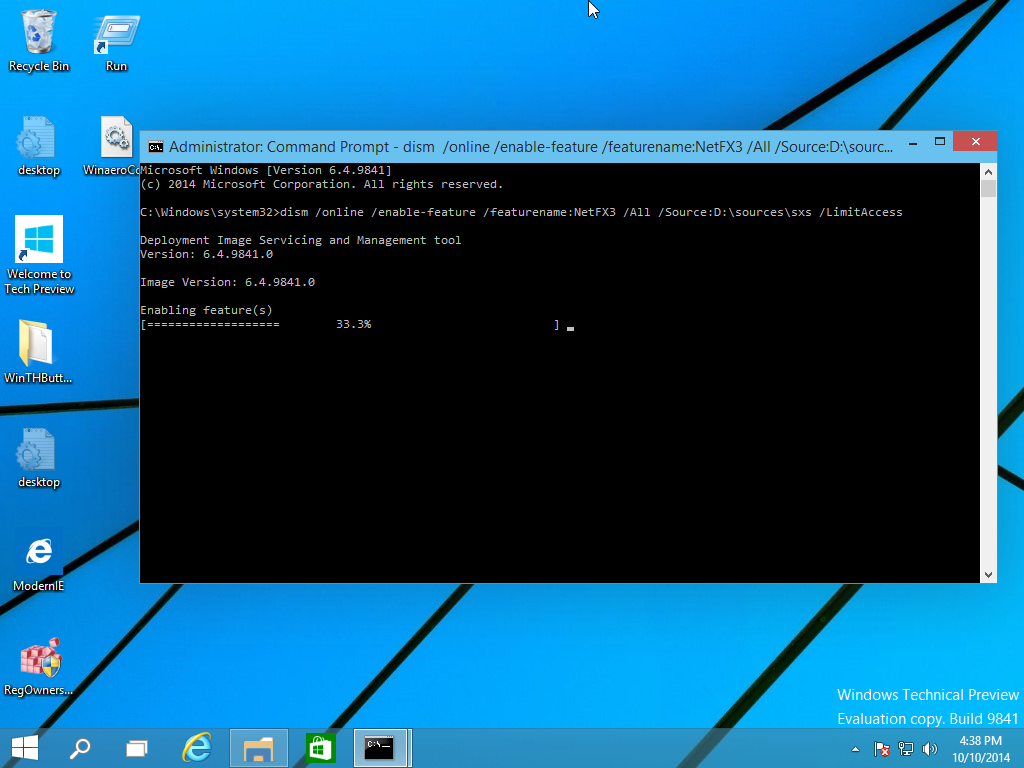
  4. Dism /online /enable-feature /featurename:NetFX3 /All /Source:D:\sources\sxs /LimitAccess
    Replace D: with your drive letter for Windows 10 installation media.dism
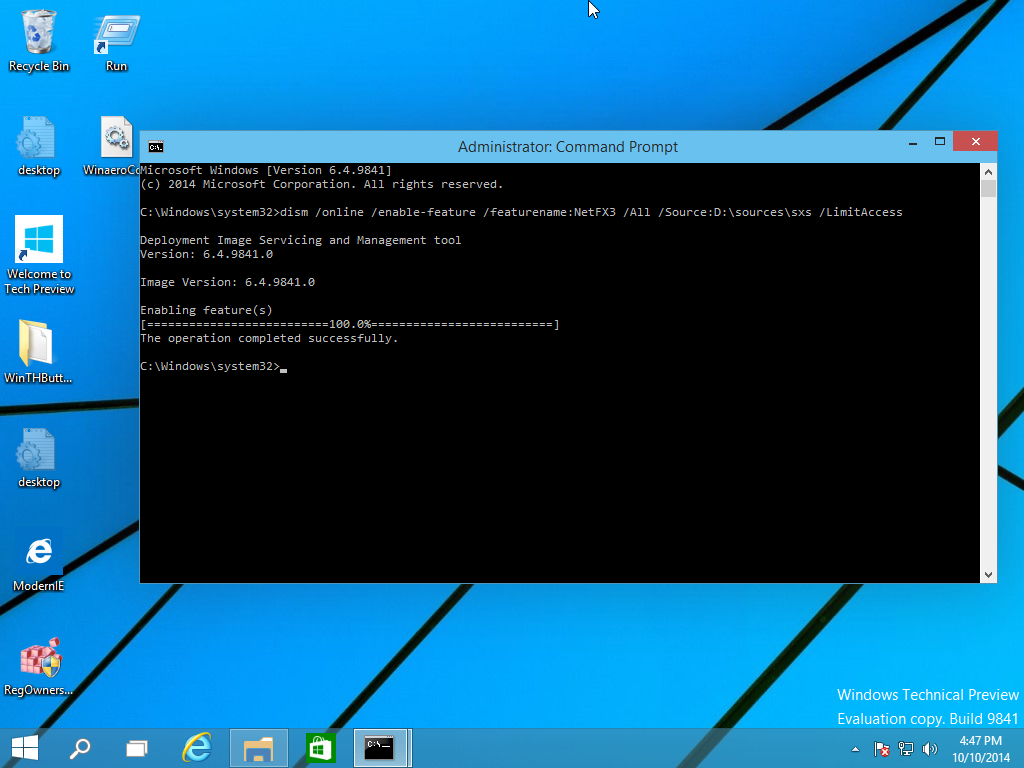
You are done! This will install .NET framework 3.5 in Windows 10.net installed seccessfully
To save your time, I have prepared a simple batch file which will save your time and will find the inserted installation media automatically. It looks like this:

@echo off
Title .NET Framework 3.5 Offline Installer
for %%I in (D E F G H I J K L M N O P Q R S T U V W X Y Z) do if exist "%%I:\\sources\install.wim" set setupdrv=%%I
if defined setupdrv (
echo Found drive %setupdrv%
echo Installing .NET Framework 3.5...
Dism /online /enable-feature /featurename:NetFX3 /All /Source:%setupdrv%:\sources\sxs /LimitAccess
echo.
echo .NET Framework 3.5 should be installed
echo.
) else (
echo No installation media found!
echo Insert DVD or USB flash drive and run this file once again. 
echo.
)
pause
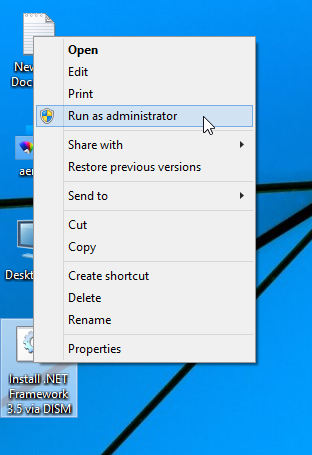
Download the file, extract it from the ZIP archive to the Desktop, right click it and choose Run as administrator. The file will install .NET Framework 3.5 automatically after finding the drive letter of your Windows 10 installation media.
run as administrator
Click here to download the batch file.

Windows 10 build 11082 ISO images

For Windows 10 build 11082, Microsoft doesn't provid official ISO images for clean install. If you're interested in installing this build from scratch, here are few links for you.


At the moment of this writing, Windows 10 build 11082 was released for Fast Ring Insiders only.  There are no official ISO images available.
Here are third party ISO images created from the official ESD files downloaded through Windows Update. You can download them with confidence.
Download Windows 10 build 11082 ISO images
Use the following link to download build Windows 10 build 11082 Pro x64 or x86.
Download
These ISO images were created using genuine Windows Update (esd) files and are not tampered with. Use them to install Windows 10 build 11082 from scratch on your virtual machine or on real hardware.


Generic key for Windows 10 RTM


There is a set of generic keys available for Windows 10 at this moment. These keys are as follows:
  • Windows 10 Home:
    TX9XD-98N7V-6WMQ6-BX7FG-H8Q99
  • WIndows 10 Pro:
    VK7JG-NPHTM-C97JM-9MPGT-3V66T
  • Windows 10 Home Single Language
    7HNRX-D7KGG-3K4RQ-4WPJ4-YTDFH
  • Windows 10 Enterprise:
    NPPR9-FWDCX-D2C8J-H872K-2YT43

Windows 10 Pro Build 10240


Windows 10 Pro Build 10240 free download full version. Get offline installer setup direct high speed download link of Windows 10 Pro Build 10240 for windows 32-64 bit. Download the official free ISO file. Windows 10 that was and is  the much discussed topic. Every Windows user exclusively wants this for his pc or android. Get offline installer setup direct high-speed ISO torrent download 32 /64 bit with Windows 10 activator.

Microsoft Windows 10 Pro  Build 10240 Review

Windows 10 is the most simplest and easiest of all windows till today. It is actually a blend and update ofWindows 7 and windows 8 with some entirely new features that are amazing to handles. The users would never leave the Windows. Windows 10 Pro Build 10240 has the ability to run not only on PC and smart phones, embedded systems, Xbox One, tablets, Surface Hub and Holo lens. For a sensible and a simple review, I would tell you that this version has been revised on a whole, whereas in most of the places you would realize some old feature. However, these old features have been given a new touch. You would get excellent and a new user experience. When I talk about the user experience this includes the design, performance and its features.The Windows Insider Program that is a global fans community who just love Windows. Insiders see the operating system in its earliest stages, and play a role in shaping it. This is the reason Windows 10 Pro Build 10240 seems almost problem-free.
Beginning the features from the very start, you would start to feel the amazing and new feeling. First of all the all new lock screen with increased security from 4 pins in Windows 8.1 to 35+ in Windows 10 (Pro+Enterprise). Moving on the welcome screen. Then you have got new themes that you would definitely love. The newest and the catchy thing is your Windows icon in the bottom left which would be clicked and the user goes into a whole new experience. The Start-up Menu is pretty useful as this has a mixture of windows 7 start-up and 8 as well. So, now no one is going to miss them. To the right of the windows icon you would see something new. Cortana, who’s our personal assistant lady who has got a beautiful voice. We tell her things that interest us and she would keep them in her mind. To our questions she would sometimes come up with amazing answers or refer to the Internet. She makes suggestions as well and does extra-ordinary things like she would sing you a song or a lullaby.. We are not over yet, no need to take your attention there, yes catchy (e) is for the Microsoft edge.
Windows 10 Pro Build 10240 Edge Download
This has replaced the previous Internet Explorer with extra optimized performance provided to its users. There are numerous feature as the notification bar at the right in the task bar. The option that windows phone users enjoy is changing the theme colors & the task view.

Be aware of the removed features

The previously available features that got discontinued are:
  1. Windows Media Center
  2. Windows DVD player
  3. One Drive built-in sync client
  4. Your own choice to Updating Windows is finished.
Don’t Worry additions are better than these.

Key Features of Windows 10 Pro Build 10240

Here below are the main features of Windows 10 (Pro + Enterprise).
  • Iconic Start Menu
  • Windows 10 browser: Microsoft Edge
  • Windows 10 Store and Universal Apps
  • Windows 10 Hello and security
  • Continuum Mode
  • Enhanced Search
  • Desktop Optimizations
  • Multitasking
  • Enhanced Snap View
  • Multiple Desktops
  • Microsoft Passport
  • Multimedia and gaming
  • Windows 10 Cortana
  • Windows 10 office
  • Windows 10 defender (anti-virus)

Operating System Requirements

Here are system requirements of Full Windows 10 (Pro + Enterprise).
  • Supports 32-bit and 64-bit editions.
  • Windows XP, Windows Vista, 7, 8.1.
  • Hard Disk: 500 Free Disk Space.
  • Ram 2GB.
Screenshot
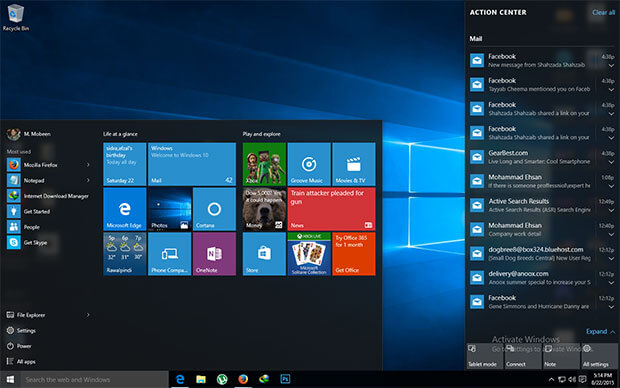
Windows 10 Final Build 10240 Start Atcion Center

Download

Create Windows 7 Bootable USB Drive From ISO File

Create Windows 7 Bootable USB Drive From ISO File

This tutorial will help you with the installation of Windows from image (.iso and .img) file using USB Drive. It is step by step method with pictures and screenshots. Without any CD/DVD. All you need is a USB flash drive of at least 4GB for Win 7 and 8GB for Windows 8 or 10. This article is a detailed 100% Working Guide. It covers these topics:
Windows 7 USB Flash Drive⇒ How to Create Windows 7 Bootable USB Drive
⇒ How to Install Windows 7 from ISO File
⇒ Windows 7 USB Installation Guide
⇒ Install Windows 7 on USB
When you download Windows from Microsoft Store or any online source, you download it as an ISO file. An ISO file combines all the Windows installation files into a single uncompressed file – like a DVD clone or backup. With ISO file so you can create (burn) a bootable DVD or USB drive containing Windows installation files.
Windows 7 USB Installation Guide
This allows you to install new Windows OS onto your PC. If you change the boot order of drives in your PC’s BIOS, you can run the Windows installation directly from your DVD or USB drive when you first turn on your computer. You can search for information about how to change the boot order of drives in your PC BIOS.

Windows 7 USB Installation Guide


You need Windows image file + ISO to USB burner software + USB flash drive to create Windows 7 USB Install Disk.


Download and Install Windows 7 USB/DVD tool

This is Microsoft’s genuine tool to make USB drive bootable. It can be downloaded here.
To install the Windows USB/DVD Tool, you must be an administrator on the computer on which you are installing the tool.
For 32bit Windows Users
Users who are running 32bit Windows need following file to burn (copy) 64bit ISO file on USB drive successfully.
bootsect.exe must be present in the same folder as the .iso file. It can be downloaded here.
For Windows XP Users
The following applications must be installed prior to installing the tool:
Microsoft .NET Framework 2.0  or higher must be installed. It can be downloaded here.
Microsoft Image Mastering API v2 must be installed. It can be downloaded here.

Create Windows 7 Bootable USB Drive From ISO File

After you have downloaded above Windows 7 USB tool. Now Make a USB copy of your Windows ISO file, using this Tool.
Step 1 – Open this tool from your programs. e.g Start ⇒ All Programs. Click on Browse button and go to path where your windows iso file is located. Select Windows 7 ISO file and click Open.
Choose ISO File
browse windows 7 iso file to open
Step 2 – Click on USB Device as media type you would like to use to create windows 7 bootable USB drive.
Choose media type usb or dvd
Step 3 – From Drop Down box select your USB Pen drive letter e.g. H: or I: or G: and then click Begin copying. After the process is completed the USB is now bootable. Turn off your computer and plugin USB. Now Turn on PC and boot from USB. Done.
Insert USB device
When your Windows ISO file is copied, install Windows by moving to the root folder of your USB drive, and then double-click Setup.exe
Install the Rufus Software and Open it. It can be downloaded here.
After you open it. Follow Below Steps:
  • Plug in your Pen Drive into USB Flash Port.
  • To make a Windows bootdisk (Windows XP/7) select NTFS as file system from the drop down.
  • Then click on the buttons that looks like a DVD drive, that one near to the checkbox that says “Create bootable disk using:”
  • Choose the XP ISO file.
  • Click Start, Done!